This guide walks you through the submission wizard from start to finish. The wizard has seven steps: Classification, Basic Info, Trust Sheet, Screenshots, Live App, Quality Review, and Review and Submit. Most builders finish in 10 to 15 minutes. You can leave and come back, because your progress is saved as a draft at each step.
The flow is the same whether you are listing a standard app or an AI agent. The one difference is a toggle in Step 2 ("Is this an AI agent?") that, when set to Yes, adds a few agent disclosures to the listing details.
Before you start
Have these ready so you do not have to stop partway through:
- Your app files. For an AppGild-hosted app, that is a single
index.htmlor a.zipof your built static files (see Step 5 for the exact layout). For a builder-hosted app, that is the live URL where your app already runs. - Two to five screenshots of your app in use, as JPEG, PNG, or WebP, each under 5 MB.
- A one-line summary and a longer description. Keep the one-liner under 160 characters, because the field cuts off anything longer.
- A price. AppGild is subscription-only. Decide on a monthly or annual price. The minimum is $5 per month or $29 per year.
Open the wizard from your dashboard with the New App button.
Step 1. Classification: how your app runs
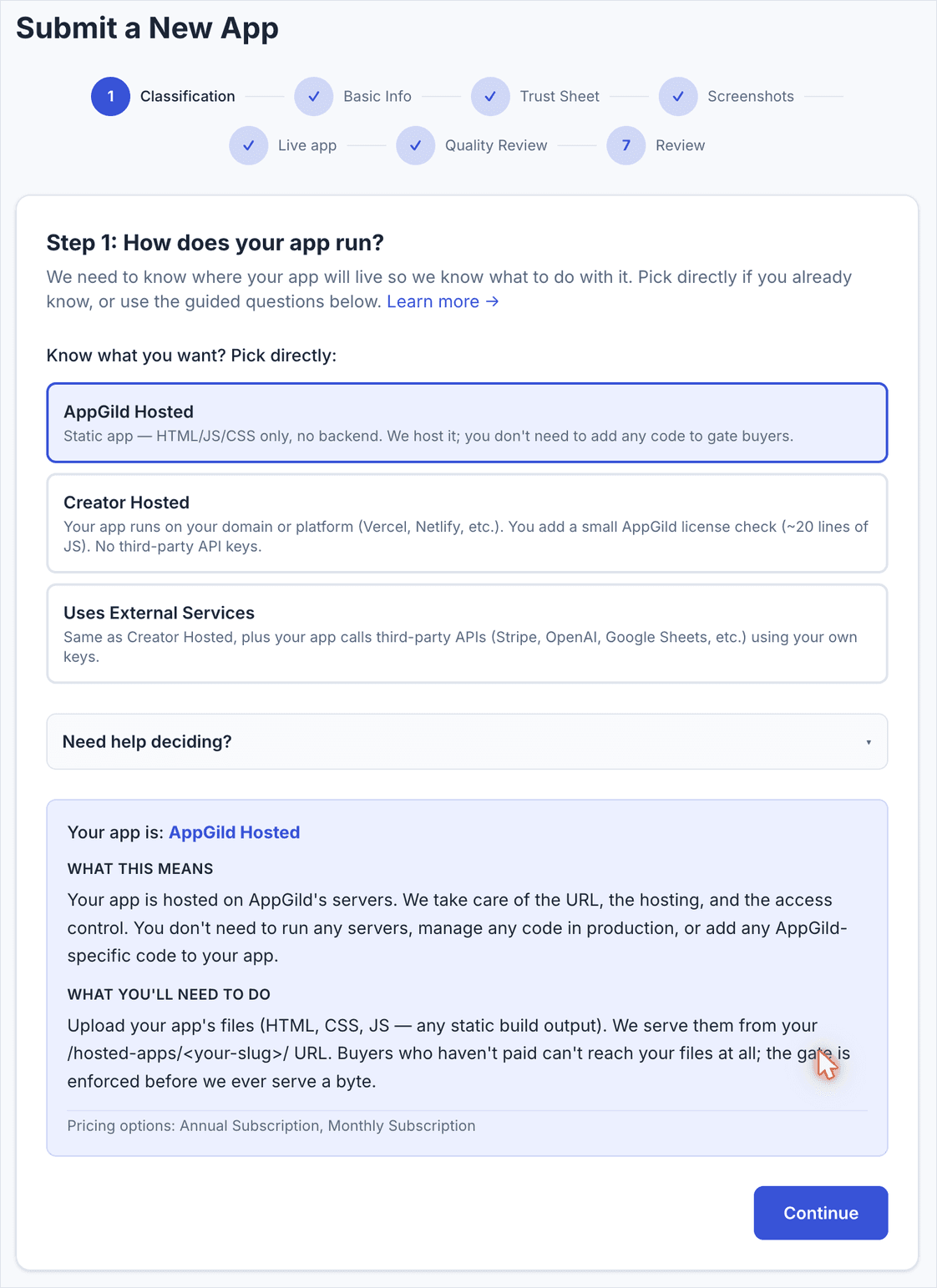
This is the most important choice in the wizard because it changes everything that follows. Pick one:
- AppGild Hosted. Your app is static (HTML, CSS, and JavaScript only, no backend). We host it for you and gate access automatically. You upload your files in Step 5. Choose this if your app runs entirely in the browser and stores its data locally.
- Creator Hosted. Your app already runs on your own domain or platform (Vercel, Netlify, and the like). You add a short AppGild license-check snippet so only paying buyers get in. No third-party API keys are involved.
- Uses External Services. The same as Creator Hosted, except your app also calls third-party APIs (Stripe, OpenAI, Google Sheets, and so on) using your own keys.
Selecting an option expands a short explainer that confirms what it means and what you will need to do. Read it, then click Continue.
Heads up
- Not sure which to pick? Use the "Need help deciding?" prompt for guided questions. As a rule: no server of your own means AppGild Hosted; your own server with no outside APIs means Creator Hosted; your own server plus outside APIs means Uses External Services.
- You can change this later by clicking back into Step 1, but switching hosting type after you have uploaded files or set a live URL means redoing Step 5, so decide deliberately now.
Step 2. Basic information
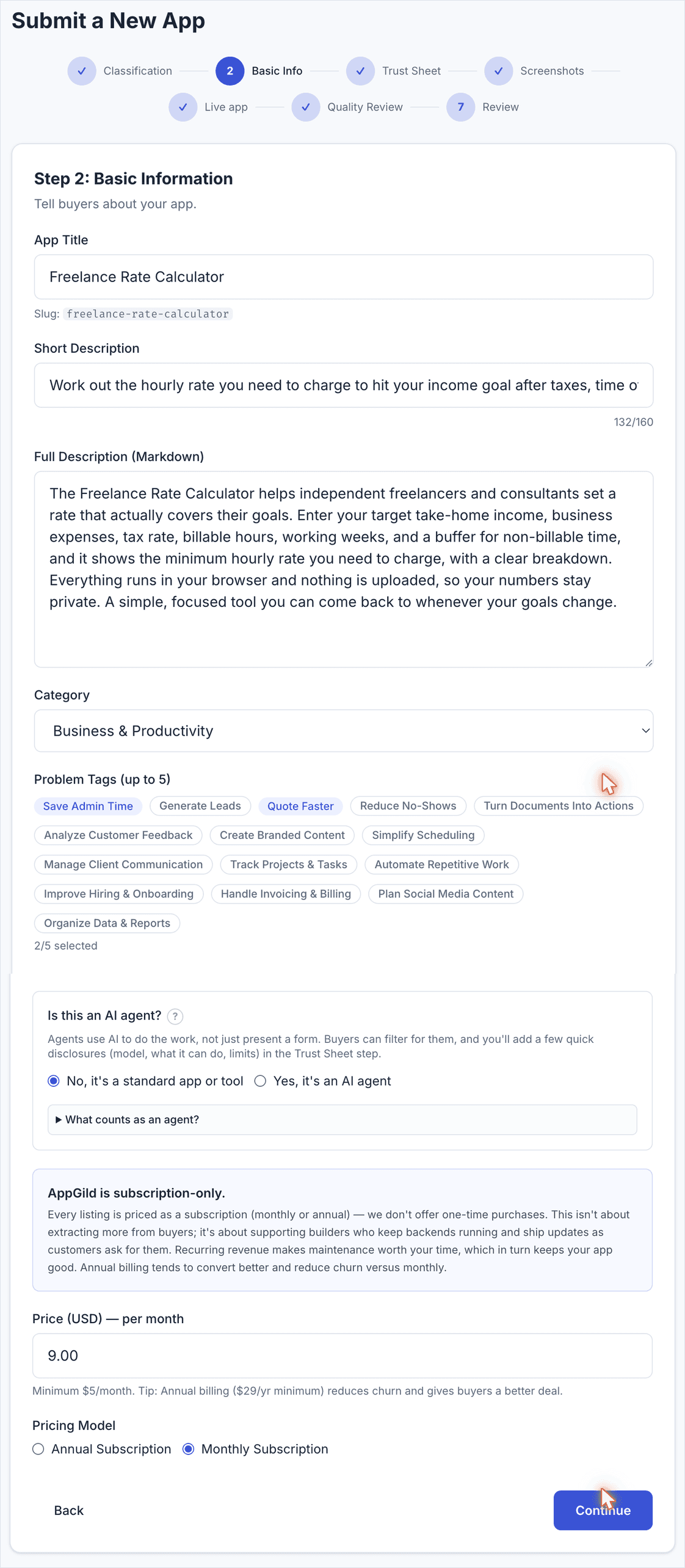
This is what buyers see on your listing.
- App Title. The name of your app. The wizard generates a URL slug from it automatically, shown just below the field.
- Short Description. One line, shown on app cards in the marketplace. Keep this under 160 characters. The field accepts longer text but stores only the first 160, so a long sentence gets cut off mid-word on your card. Write a complete thought that fits.
- Full Description (Markdown). Your full pitch. Lead with the problem you solve and the outcome the buyer gets, then list the main features and who it is for. Plain Markdown formatting works.
- Category. Pick the single best fit. Choose the category a buyer would actually browse to find you, not the most technically precise one.
- Problem Tags. Up to five. Pick the ones that match the jobs your app does. Two or three accurate tags beat five loose ones.
- Is this an AI agent? Leave this on "No, it's a standard app or tool" unless your app uses AI to do the work itself rather than just presenting a form. If you pick "Yes," you will fill in a few agent disclosures in the listing details step.
- Pricing. AppGild is subscription-only, with no one-time purchases. Choose Monthly or Annual and enter a price. Most builders start with monthly. Annual is there if you'd rather bill once a year. The minimum is $5 per month or $29 per year.
Click Continue. The button stays greyed out until every required field is filled.
Heads up
- The Continue button will not light up. A required field is still blank, or the price is below the minimum ($5 per month, or $29 per year).
- Your short description looks cut off later. You went over 160 characters. Shorten it so it ends on a complete word.
Step 3. Listing details
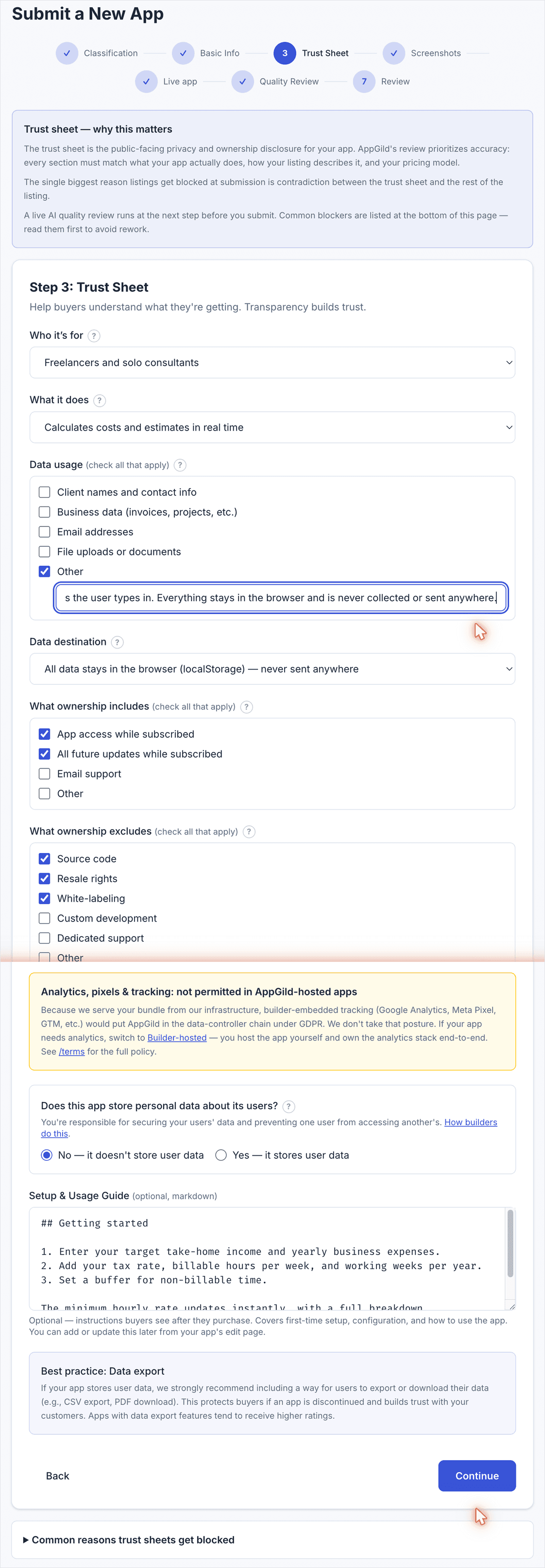
This is the public privacy and ownership disclosure for your app. The single most common reason a listing gets blocked is a contradiction between the listing details and the rest of your listing, so make every answer match what your app actually does and how you described it.
- Who it is for. Pick a preset, or choose "Other (type your own)" and name your specific audience. Generic answers like "small business owners" get flagged. If your listing names "painters, landscapers, and electricians," say that here too.
- What it does. Pick the closest action. If none of the presets fit, choose "Other" and describe it in one short sentence.
- Data usage. Tick what kinds of data the app collects. If your app is local-only (everything stays in the browser), do not tick "client contact info," "business data," or "email addresses." Those imply a server is collecting them, which contradicts an offline claim. Instead, tick Other and write one line such as "Nothing is collected by us; everything you enter is stored only in your browser." This field cannot be left empty, so local-only apps use the Other line.
- Data destination. Name the actual destination. Vague answers like "various third parties" get flagged. For a local-only app, choose "All data stays in the browser (localStorage), never sent anywhere."
- What ownership includes and excludes. Tick the boxes that match your pricing. For a subscription, "App access while subscribed" and "All future updates while subscribed" are the right includes. Exclude source code, resale rights, white-labeling, custom development, and dedicated support unless you genuinely offer them.
- Does this app store personal data about its users? For a static, local-only app with no server-side storage, answer No. Answer Yes only if you keep user data on a server, in which case you will add a short data-isolation note.
- Setup and Usage Guide (optional). A short Markdown guide buyers see after they purchase. Optional, but a four-step "Getting started" noticeably improves the buyer experience.
A panel at the bottom, "Common reasons listing details get blocked," lists the exact mismatches the reviewer looks for. Read it before you continue.
Heads up
- Analytics and tracking. AppGild-hosted apps may not run analytics, pixels, or third-party tracking, because we serve your bundle and that would put us in the data-controller chain. If you need analytics, choose builder-hosted in Step 1 and run your own.
- Continue will not light up. A required field is empty. The easy one to miss is Data usage: it must have at least one box ticked (use "Other" for local-only apps).
Step 4. Screenshots
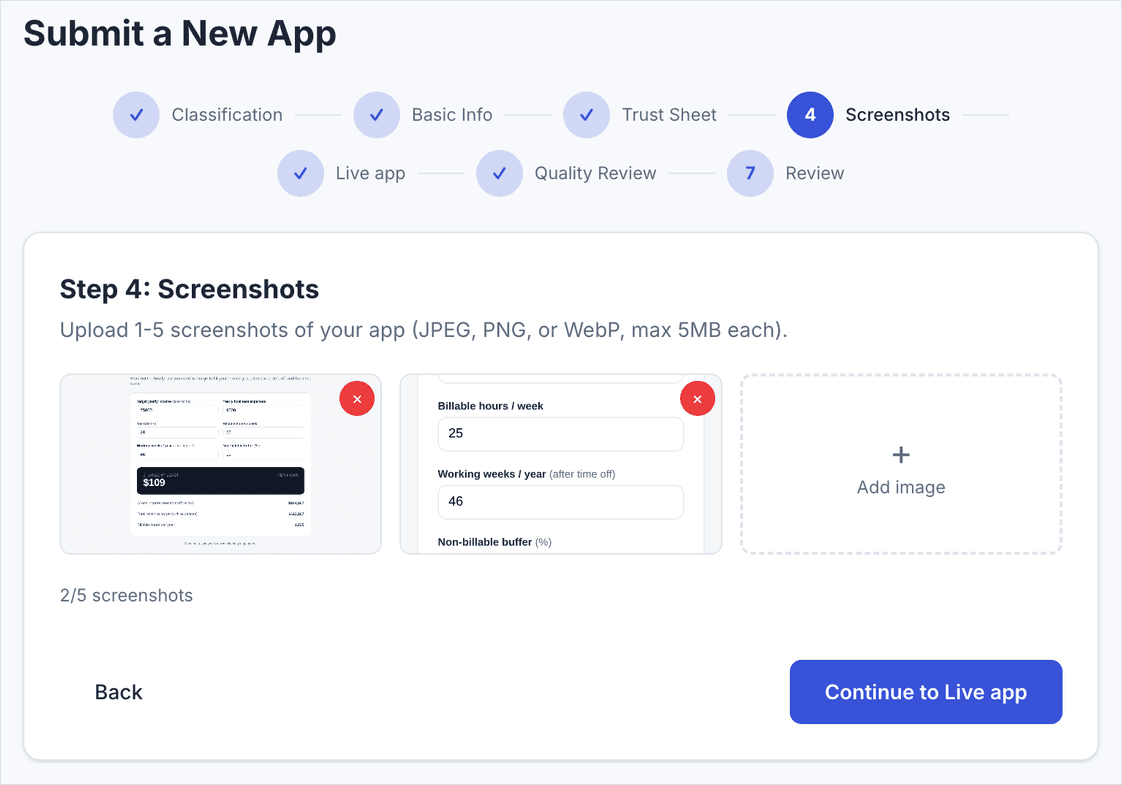
Upload two to five images that show your app actually being used (JPEG, PNG, or WebP, each under 5 MB). The first image is your hero, so lead with the screen that best shows the value. A listing with a single screenshot is flagged in review, so add at least two.
Click Add image, pick your files, and they appear as thumbnails. Remove any with the small x. Then click Continue.
Heads up
- Use seeded or example data in your shots, not a blank screen. A populated, lived-in screenshot sells far better than an empty state.
- A file will not upload. Check it is under 5 MB and is a JPEG, PNG, or WebP.
Step 5. Live App
What you do here depends on your Step 1 choice.
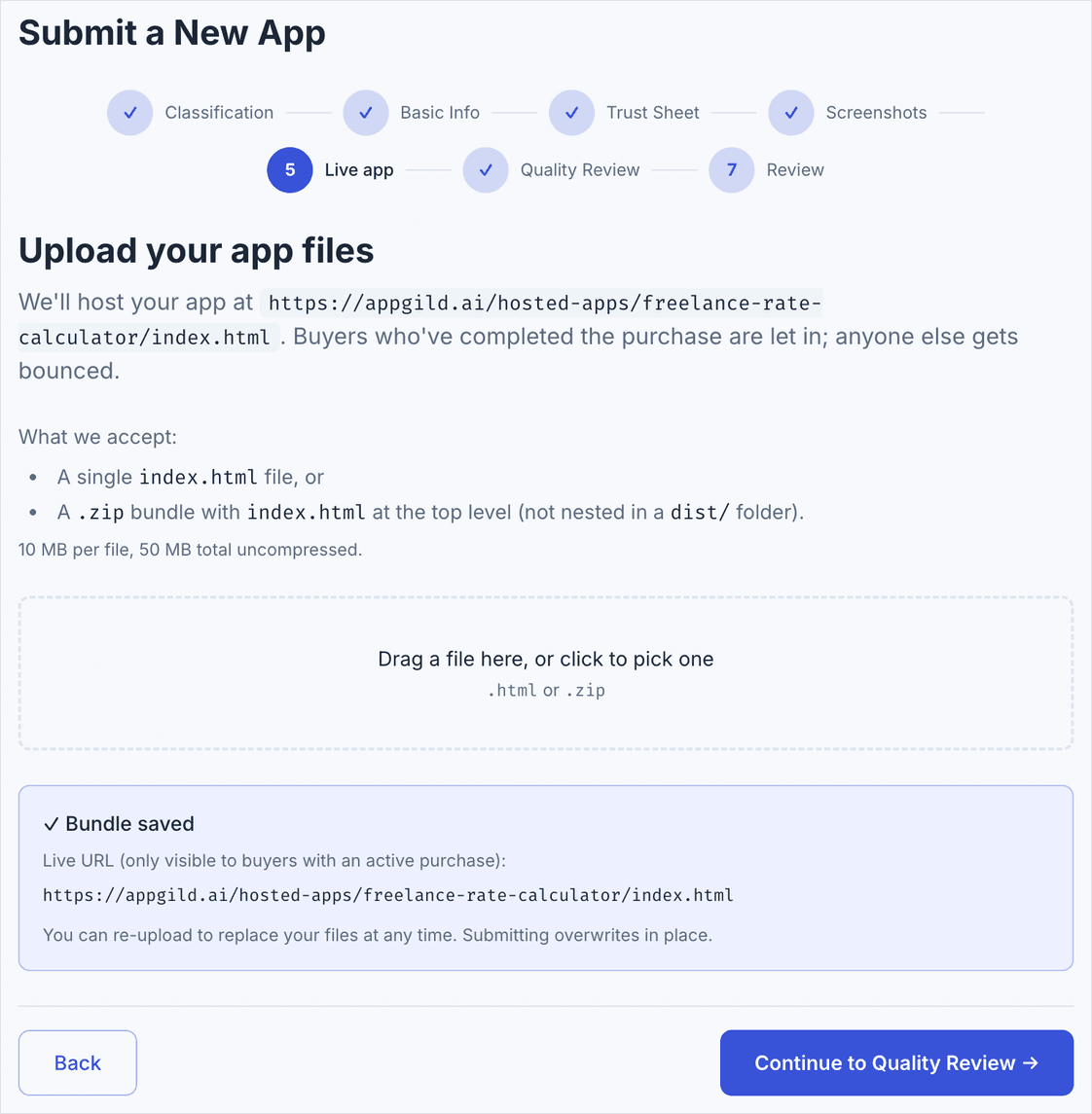
AppGild-hosted apps: upload your files. We accept either a single index.html, or a .zip with index.html at the top level of the archive, not nested inside a dist/ folder. The limit is 10 MB per file and 50 MB uncompressed. Drag your file in or click to pick it, then click Upload to AppGild. When it finishes you will see "Bundle saved" with the number of files and your live URL. You can re-upload to replace your files at any time.
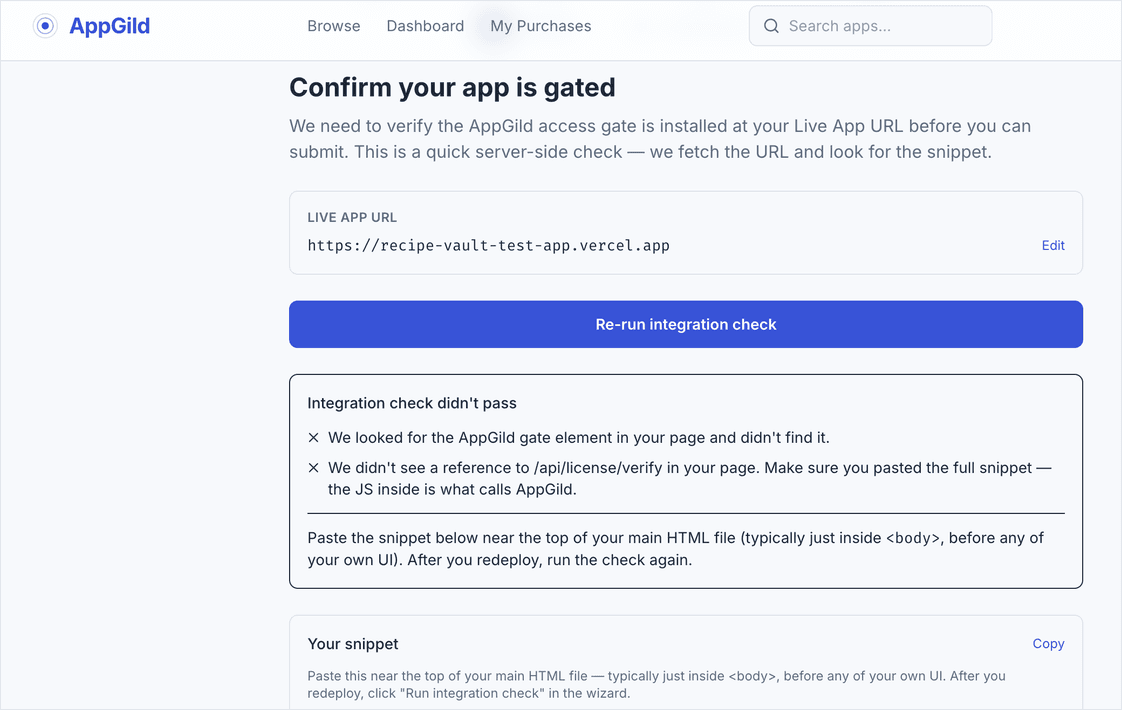
Builder-hosted apps (Creator Hosted or Uses External Services): confirm your live URL and gate. Because your app runs on your own server, AppGild cannot serve a paywall in front of it. Instead, you add a short license-check snippet so only paying buyers get in, and the wizard verifies it is installed before you can submit. The wizard fetches your Live App URL and looks for the snippet. If it does not find it, you will see "Integration check didn't pass," with the exact reasons and the snippet to copy:
To pass the check:
- Copy your snippet from the box at the bottom of this screen. It is customized to your app, so copy it from here rather than from anywhere else.
- Paste it near the top of your main HTML file, typically just inside
<body>, before any of your own UI. The snippet calls the AppGild/api/license/verifyendpoint to confirm the buyer has an active purchase. - Redeploy your site.
- Click Re-run integration check. When it passes, the wizard unlocks the next step.
The two most common failure reasons, both shown on this screen, are that the AppGild gate element was not found in your page, and that there is no reference to /api/license/verify. Both mean the snippet was not pasted, was pasted incompletely, or has not been redeployed yet.
Bringing an app that already has users
If your app is already live with real users, do not add the license check straight to it. The check gates the whole app behind an AppGild license key, so the first time you deploy it your current users lose access until they have a key of their own.
Here is how builders handle the switch:
- Two copies. Leave your current app running for the people already using it, and list a separate copy on AppGild for new customers. This is the simplest path and the one we recommend if you are unsure. You can consolidate later.
- Migrate your users. Ask your existing users to create an AppGild account and subscribe to your app. Once they do, they get a license key, enter it once, and continue without interruption. This puts everyone on AppGild billing and is cleaner long term, but plan a short heads-up to your users so no one is surprised.
- Always test with your bypass key first. Confirm the gate behaves in a copy only you can reach before any real customer touches it.
We do not yet offer an automatic way to pre-approve your existing users in bulk. If that would help you, tell us, it is on our list and builder demand moves it up.
Click Continue to Quality Review.
Heads up
- "No index.html found." Your zip has the files inside a subfolder. Re-zip so that
index.htmlsits at the root of the archive, next to yourassets/folder. - Forbidden files. AppGild-hosted apps are static only. Remove any server-side files (
.php,.py,.rb,.sh) and hidden dotfiles (.env,.git,.DS_Store) before zipping. - Build with relative asset paths. If you use a bundler like Vite, set the base to
./so your assets load correctly from the hosted subpath. Absolute/assets/...paths will 404 once hosted.
Step 6. Quality Review
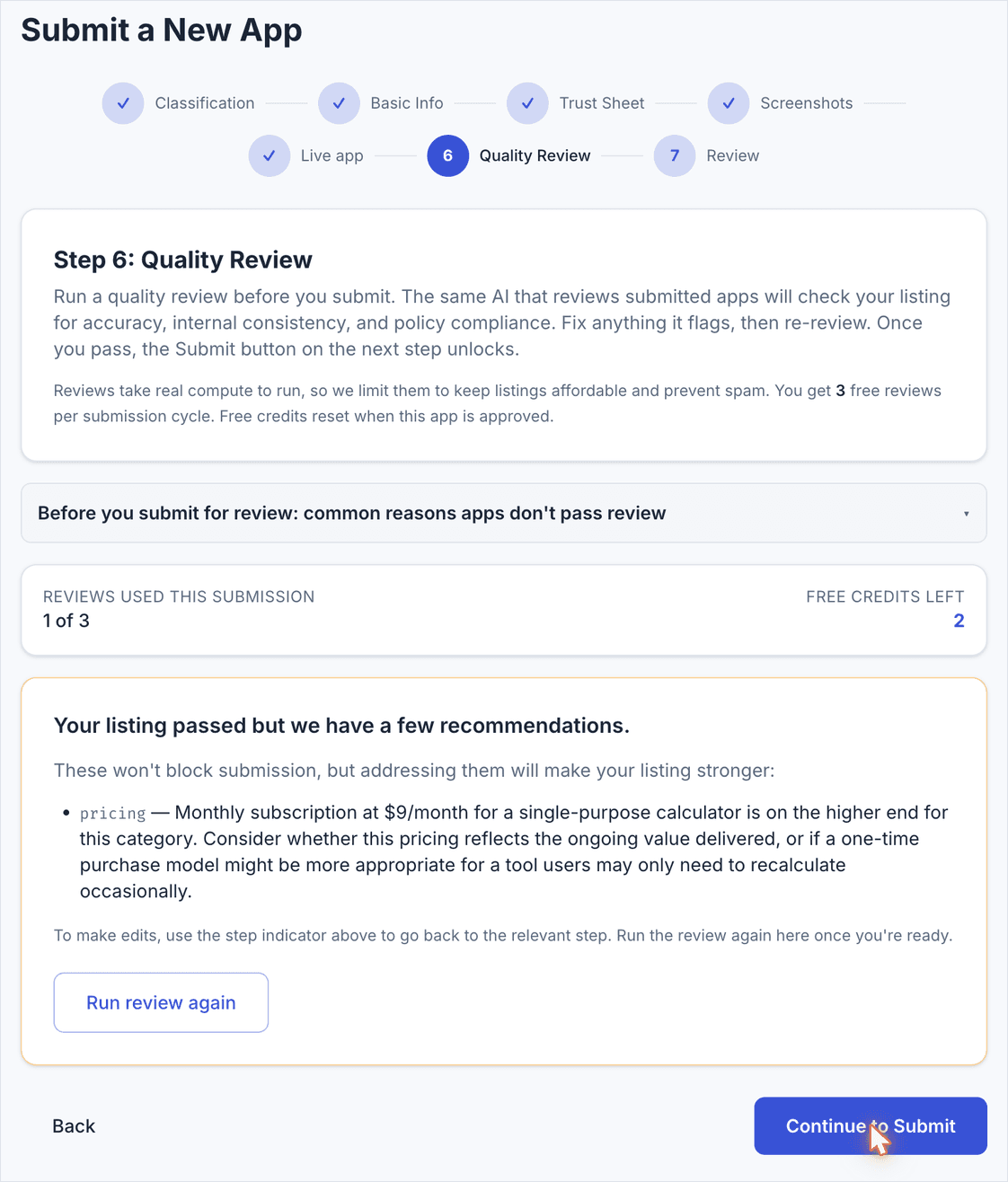
Before you can submit, run the automated quality review. It checks your listing for accuracy, internal consistency, and policy compliance, the same review a human would do. Click Run quality review and wait a few seconds for the result.
- Passed. You may see "Your listing passed but we have a few recommendations." These are non-blocking suggestions (a pricing note, a wording tweak). You can act on them or move on.
- Needs changes. The review lists what to fix. Use the step indicators at the top to jump back, make the edit, return here, and run the review again.
Once you pass, the Submit button on the next step unlocks. Click Continue to Submit.
Heads up
- Free reviews are limited. You get a small number of free reviews per submission and per day, to keep the system fast and prevent abuse. Fix everything you can before re-running rather than re-running repeatedly. If you genuinely need more, the screen tells you how to reach support.
- A "cut off mid-sentence" flag on your short description means you went over the 160-character limit in Step 2. Go back and shorten it.
Step 7. Review and Submit
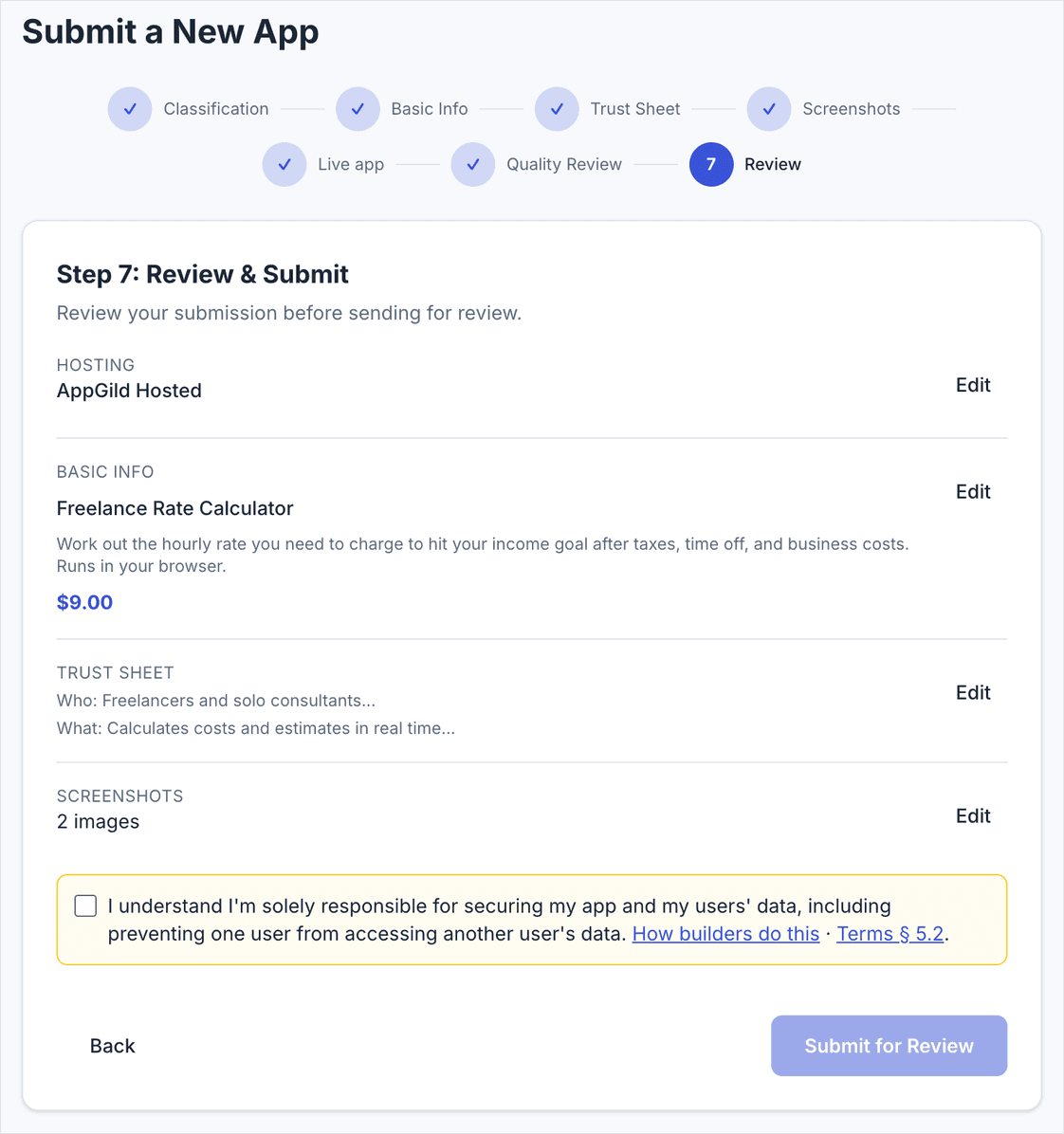
A final summary of your hosting choice, basic info, listing details, and screenshots, each with an Edit link if you want to jump back. Tick the box confirming you are responsible for securing your app and the data of your users, then click Submit for Review.
After you submit, your app enters the review queue. You will be notified when it is approved and live, and it then appears on the marketplace for buyers.
Heads up
- Submit is greyed out. Either the quality review has not passed yet, or the responsibility checkbox is unticked.
- You spot a mistake after submitting. You can edit most listing fields later from the management page for your app in the dashboard.
Quick checklist
- Pick the right hosting type (Step 1). It shapes the rest of the flow.
- Keep the short description under 160 characters and ending on a whole word.
- Make the listing details match your listing exactly. Tick at least one Data usage box (use "Other" for local-only apps).
- Add at least two screenshots that show real, populated use.
- For an AppGild-hosted zip, put
index.htmlat the root, keep it static, and build with relative asset paths. - Pass the quality review, tick the responsibility box, and submit.